
A Day with BonitoAgents#
You're fixing a rendering bug. The GPU and test scenes are on your desktop; you're working from a laptop. The goal: a tested patch, results you can inspect, and a demo another maintainer can try.
Run where the hardware is#
Open the dashboard, choose the desktop's checkout and start a chat with an ACP agent such as Claude Code or Codex. It runs beside the GPU and data. Each machine has a worker connecting to your self-hosted server; you drive them from one browser.
Discover imports existing Claude Code and Codex terminal sessions with their history. bt_sync_folder transfers a folder or a selection of files between workers.
Getting Started · Workers & Machines
Make the agent show its work#
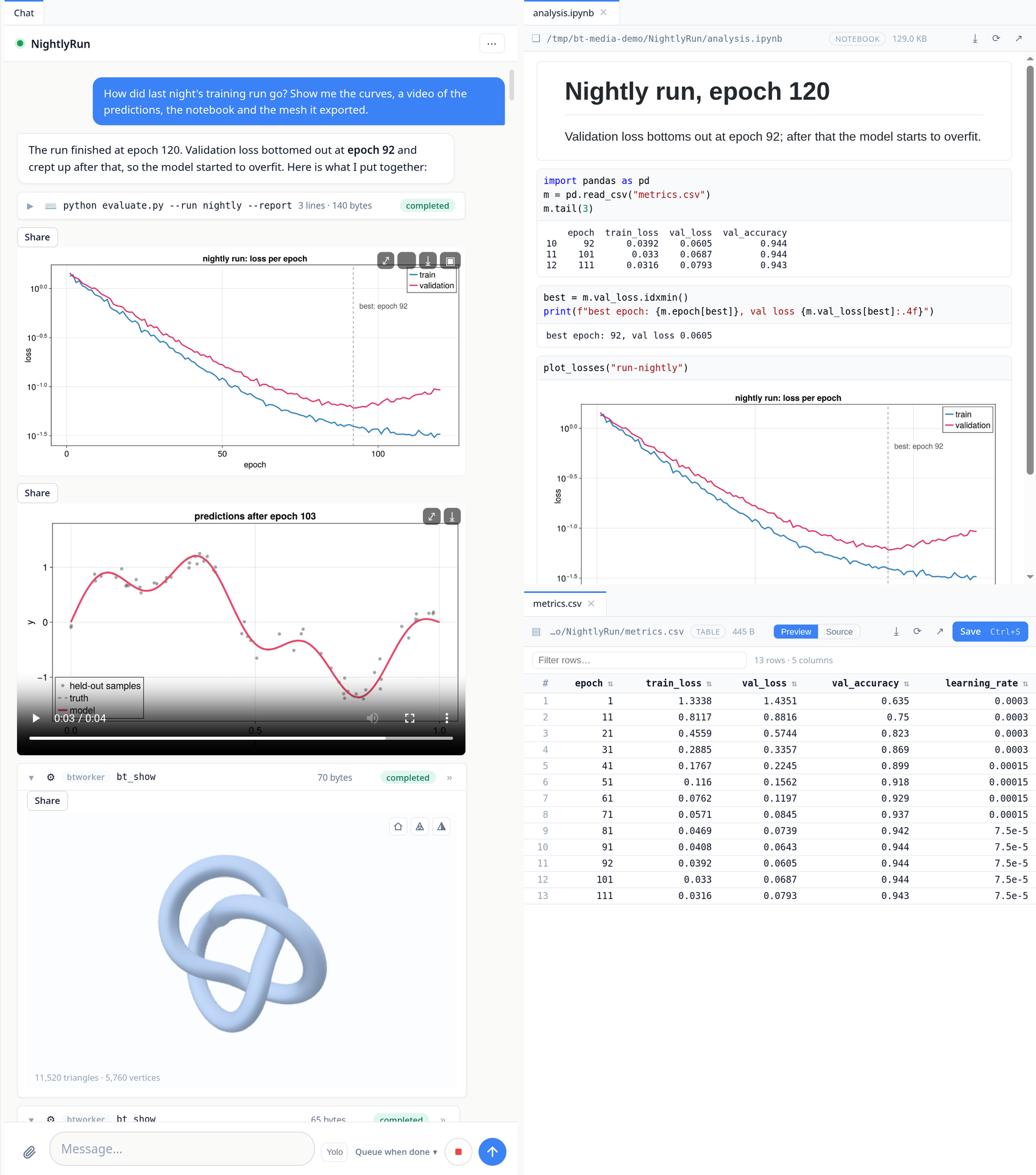
The agent says it's fixed. Ask for a before/after render and a benchmark.
With bt_show, images, videos, meshes and tables open in the conversation. Scrub through the video, rotate the model, inspect the benchmark CSV. Open the source and results in workspace tabs beside the chat while you iterate.
These viewers work with files from any language. Your renderer can be Julia, C++, Python or Rust.
Switch agents, keep the task#
Codex hits its usage limit halfway through the fix. Pick Claude Code in the chat's header and continue. BonitoAgents supplies the conversation so far; the new agent works on the same files with the same BonitoAgents tools.
Your project is an ordinary git checkout. Transcripts live on your server as markdown, and agents use your own subscriptions or API keys.
Turn the experiment into a live app#
The fix depends on a threshold. Ask the agent to build a Bonito app with a slider and a live plot. It returns the app into the chat; dragging the slider reruns the computation on the worker. Detach it beside the source while you adjust the implementation.
Persistent Julia sessions keep packages, data and compiled code warm between calls. With Remote julia enabled, the agent can also run code on another worker and bring the result into this chat.
Share the app or video#
Another maintainer should be able to inspect the result too. Click Share on a preview, or ask the agent to use bt_share.
Send the comparison video: they can watch it in their browser. Share a markdown report and its images and videos come along. Or share the Bonito app itself: they open the link, move the slider and explore the same experiment, with the computation running on your worker. Each visitor gets their own app view.
With the default tunnel setup, recipients need a browser and the link, without a BonitoAgents account. The worker stays online to serve the file or app. Links can have passwords, and you can revoke them from Settings.
For a demo that can restart, have the agent save the app as a Julia file and share that file. You can also share a live result directly from the chat while its Julia session stays open.
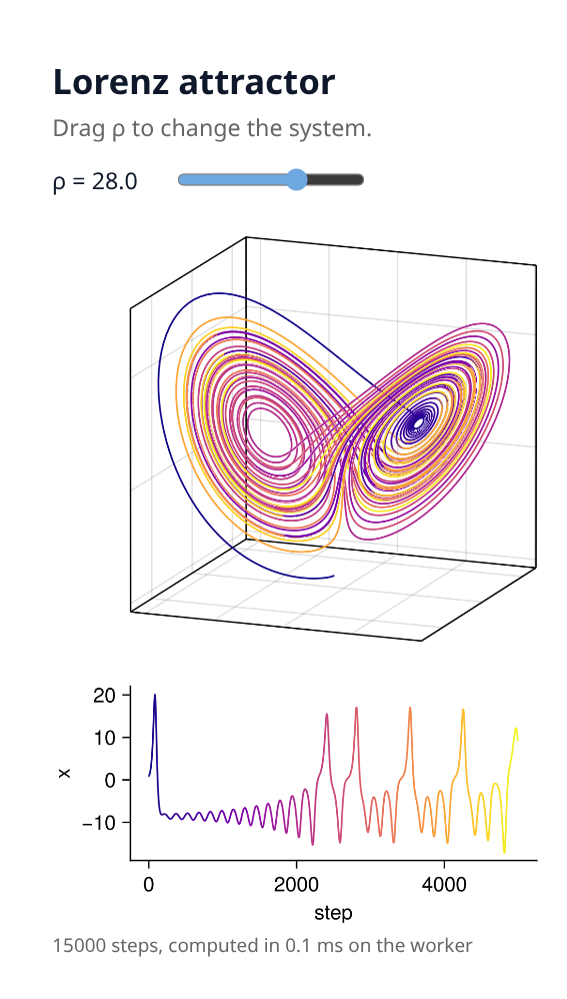
A maintainer finds a parameter combination you missed. Send that case back to the agent and keep iterating.
Review the patch and finish the run#
Review changes opens the git diff, including new files. Use Ask on a line to send a question with its code context, or collect several review notes with Feedback and send them together.
Start the final test suite or render as tracked background work. Running jobs have taskbar controls; progress reports appear in the chat and sidebar. Check from your phone, answer a permission prompt or send a correction while the worker continues.
Enable Yolo when you want the agent to continue through follow-up tasks with your reminders attached. Usage limits and repeated answers without work stop the loop. Closing the browser leaves the worker running.
Once the tests pass, the patch, benchmark results and working demo are ready for review.
Reviewing changes · Staying in control
Next time, make it an app#
Every release you run the same comparison: render the test scenes, time them, check the numbers against the last release. Ask the agent to turn that into an app. It writes a Julia package with a tile on the dashboard, a page that shows the latest numbers, and a tool any chat's agent can call to record a run.
It builds the app in the chat you asked in. It runs the app in its Julia session, shows you the app's views live in the conversation, and changes them until they fit. Then it asks to load the app into the running server. You click Load on the card it shows, and the tile is on the dashboard. From then on every agent on every machine can report to it.
On this page